
TL;DR - Lavish [1] turns agent-generated HTML outputs into interactive, browser-based review surfaces. interactive-markdown-review brings that to markdown: a small agent skill that renders markdown files in Lavish, enabling human-in-the-loop agentic reviews and direct text edits. Without Lavish, it enables interactive reviews inline, using bracket comments. Install it with npx skills add kfchou/skills --skill interactive-markdown-review.
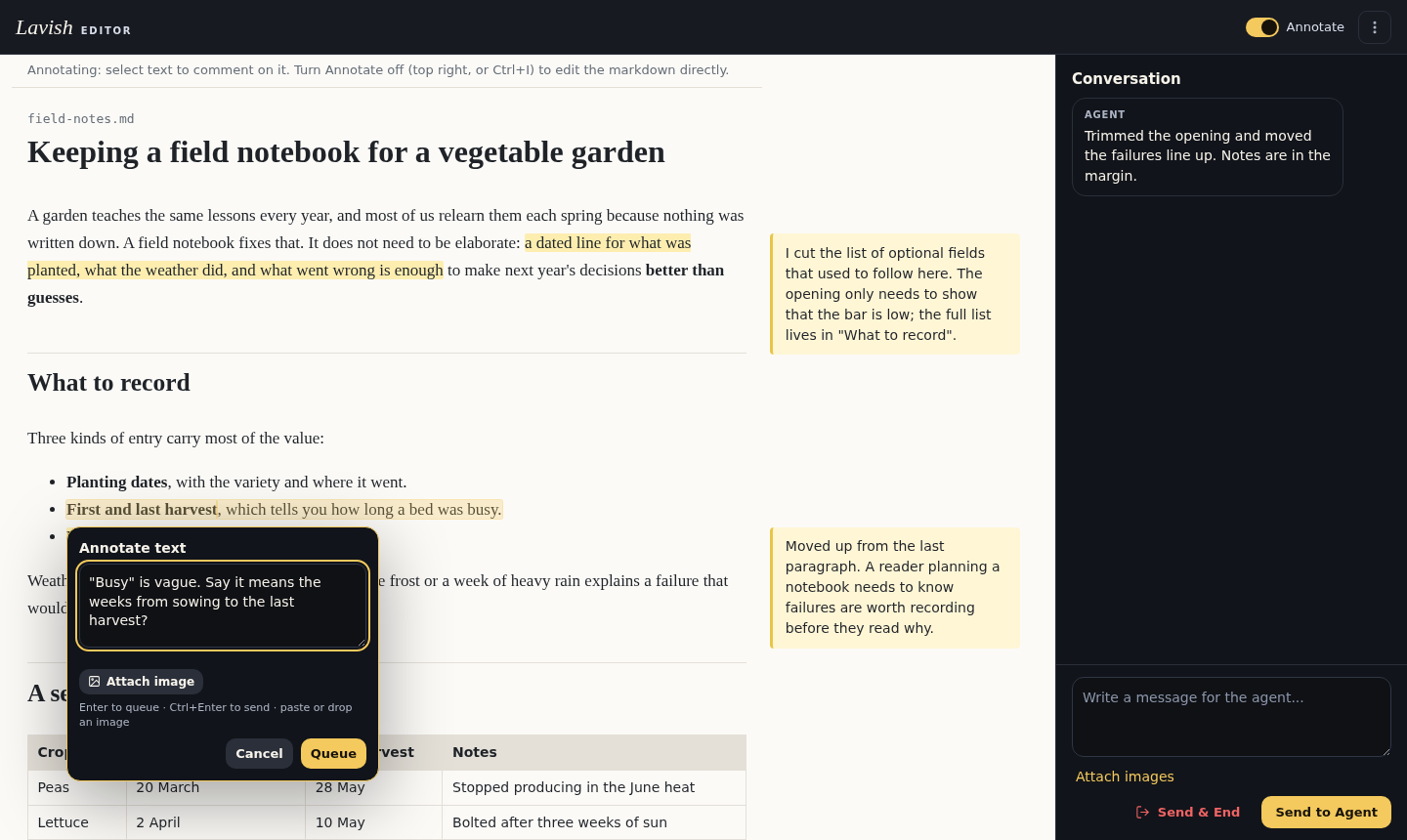
Table of Contents
- Why is this useful?
- Editing in Raw Files: Bracket mode
- Visual mode
- What the agent does as editor
- How it compares to other tools
- Installing it
- Limitations
Why is this useful?
If you’ve ever used an LLM to generate a spec, an ADR, or some other form of documentation or writing, you would understand how unpleasant it is to iterate on it with your agent.
For CLI users, the default experience is to edit the raw text, then interact with your LLM in a separate CLI. You would reference the text by either copy/pasting or selecting specific lines, but that is cumbersome over a large document.
A better UX is an interactive one. For example, when you highlight text in a Claude Desktop App conversation, a textbox pops up, in which you can chat about the selected text. Kun Chen brought this idea to iterating on web UI design via the Lavish Editor [1], the “editor for your HTML artifacts”. In Lavish, clicking on HTML elements pops up a chatbox for you to chat about the selected object.
The interactive-markdown-review skill brings this interactive editing experience to markdown files. In bracket mode, the interaction takes place inline within the markdown files themselves. In visual mode, the interaction takes place inside the Lavish editor. In either case, you and your agent mark up elements on the same copy of the draft without needing to switch back and forth between the CLI and your markdown file.
Editing in Raw Files: Bracket mode
Let’s start with the raw markdown file. You can enter an interactive session by adding your comments using <single brackets>, and the agent will respond or ask new questions in <<double brackets>>. All comments live in the document, so you don’t need to switch between your editor and the CLI:
Here's a lucky property of a research wiki: it grades itself. <expand — why lucky?>
<<Because the eval set already exists: every analysis's `sources:` field is a
labeled (query, gold-answer) pair. I've added a sentence below naming that. But it
only works if your wiki cites in a structured field. Want that as a caveat line or
folded in?>>
On its turn, the agent reads every open comment before changing anything. Comments can interact: a <cut this> in one paragraph can make another concern moot. For each of my comments, the agent either makes the edit and deletes the comment, or leaves the comment in place with a <<reply>> when it disagrees or needs a decision. It then adds its own <<comments>>, deletes the ones I’ve answered, and hands back with a short chat message saying what changed and what it needs from me. The comment chain stays in the file, so I can neglect the draft for a few days and still see where every thread stands.
Visual mode
Long comment chains become visually cluttered and cumbersome to parse. The visual mode renders markdown in your default browser to make the review process visually pleasing.
Bracket mode remains the default because it requires no additional tools. When a session starts in bracket mode, the agent informs the user in one line that visual mode is available, and it switches only when the user asks (“review this visually”, “open it in Lavish”).
I built visual mode as a markdown layer on top of Lavish. It adds three things:
- A readable page. Your markdown opens as a clean, rendered page, with formatted tables and light and dark themes. It refreshes on its own whenever you or the agent change the file.
- Notes in the margin. The agent explains each change in a note beside the passage it touched, so the reasoning sits where it applies.
- Direct edits. Click a paragraph and edit it; the change is saved straight to the markdown file.
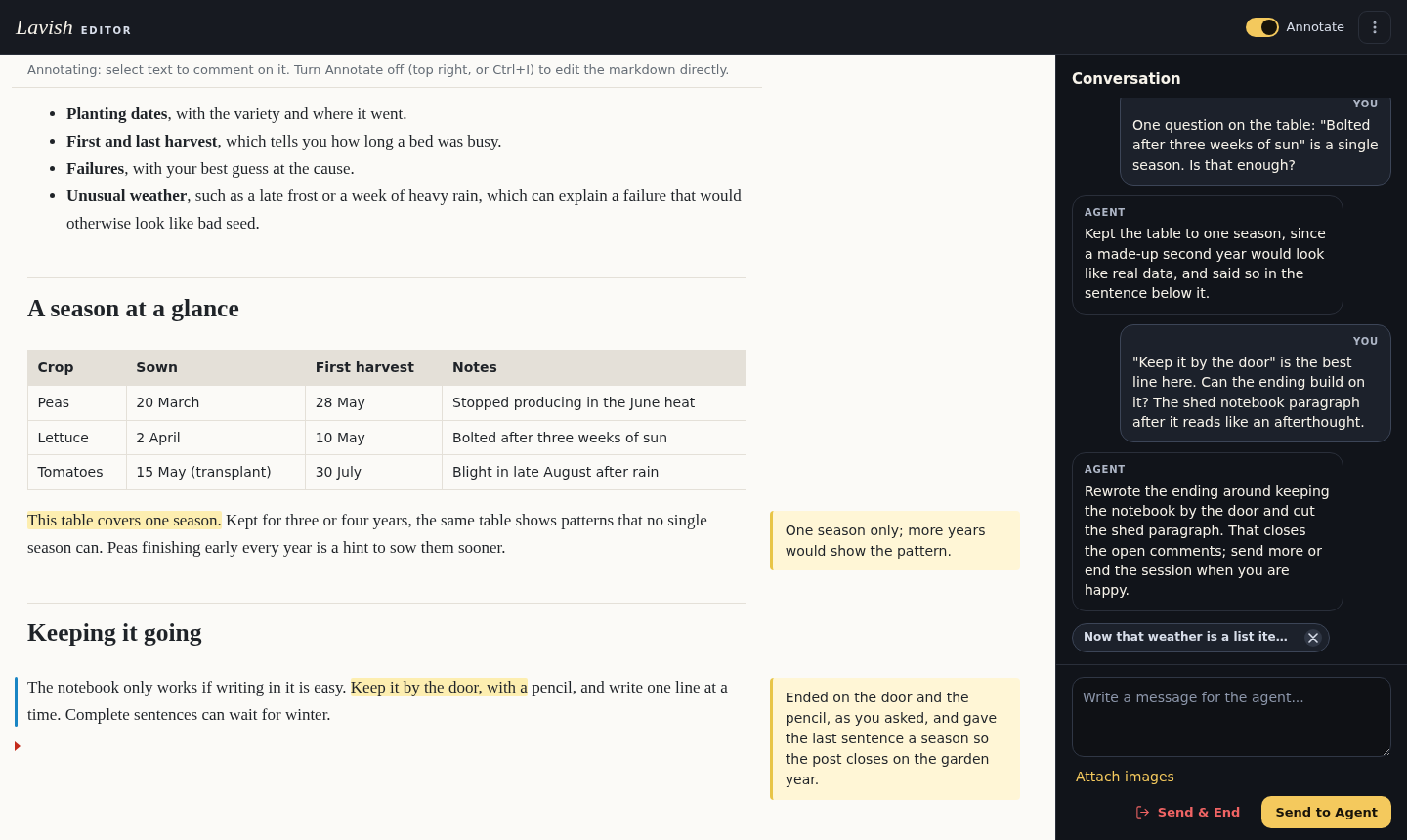
Switch between annotation mode and edit mode with the “Annotate” toggle (or Ctrl/Cmd+I). In annotation mode, you highlight text and comment on it. In edit mode, you click a paragraph and edit its markdown directly. The agent picks up your edits on its next turn and treats them as your decisions.
A session goes like this:
- You ask the agent to review a draft visually, and the page opens in Lavish.
- You read it, highlight passages and comment on them, or edit text directly, then send your comments.
- The agent revises the draft and explains its changes in margin notes, and the page refreshes.
- You read the new version and carry on until you end the session.
After each of its turns, the agent’s changes are marked the way VS Code marks changed lines in the gutter:
- a blue bar beside a block it modified,
- a green bar beside a block it added,
- a small red marker where it deleted one.
Unchanged blocks have no mark. The bars compare the draft with the version you left when the agent’s turn began, so your own edits never get bars, and they reset at the start of the next turn. A block is a whole paragraph, heading, list, table, or code block, so changing one word marks the whole block.
What the agent does as editor
Beyond carrying out your comments, the skill also ships with reviewing guidance. The reviewer flags problems you didn’t ask about, such as undefined jargon, a buried lead, a paragraph that repeats itself, or an unsubstantiated claim.
The agent is allowed to change a word or tighten a paragraph without asking, but a section reframe, a paragraph re-location, or a cut is raised as a structural comment and waits for your answer.
How it compares to other tools
Lavish is part of Kun Chen’s open-source agent tooling, which together has about 36,000 GitHub stars across 47 projects (as of October 2026), and this skill builds on that ecosystem.
This skill has minimal installation requirements, making it one of the most lightweight solutions available on the web. It is ideal for anyone working purely from a coding CLI like Claude Code.
If you prefer a full desktop app or work inside VS Code, these alternative tools are worth considering:
- Plannotator [2]: Direct competitor to the Lavish Editor. It is a mature, local, browser-based review page for LLM agents. It works with both HTML and markdown documents. Like Lavish, you comment on exact text and mark passages for deletion, and it sends everything back to the agent as structured feedback. You can also edit the markdown and save it straight to the file. One difference in day-to-day use: a Plannotator session ends after one round of feedback, so the agent starts a new one for every round. This skill keeps a single session open across turns, so the page stays where you left it and the change bars carry from one turn to the next, which IMO is a slightly better experience.
- Nimbalyst [3]: Competitor to Notion - a rich desktop app that runs Claude Code and Codex. Goes way beyond HTML and markdown editing to include kanban boards and csv rendering, extensions and a marketplace.
- any-markdown [4] and VMark [5]: WYSIWYG markdown editors, a VS Code extension and a desktop app, that stay in step while an agent edits the same file.
- markupmarkdown [6]: a web app with threaded margin comments, where agents join through an MCP server and propose edits for you to accept.
| Tool | Where you review | Agent’s explanations anchored in the document | You edit the markdown file directly | Needs |
|---|---|---|---|---|
| interactive-markdown-review | Rendered page in Lavish | Yes, margin notes | Yes, one block’s source at a time | Node, lavish-axi |
| Plannotator | Browser review page | Possible through its external-annotations API, not in the default flow | Yes, in Edit Mode, saved to the file with a conflict check | Plannotator install |
| Nimbalyst | Desktop app, WYSIWYG | — | Yes, and you accept or reject the agent’s edits | Desktop app |
| any-markdown | VS Code, WYSIWYG | — | Yes | VS Code or a compatible editor |
| VMark | Desktop app, WYSIWYG | — | Yes | Desktop app |
| markupmarkdown | Web app | Yes, threads via MCP | Through its editor and a GitHub round-trip | Hosted app, or self-hosting with MongoDB |
A dash means the project’s own documentation doesn’t mention it.
In short: if you already live in a coding CLI and want to review markdown without opening another app, use this skill. If you want a full workspace or app around your agent, one of the tools above may serve you better.
Installing it
With the skills CLI [7]:
# for the current project
npx skills add kfchou/skills --skill interactive-markdown-review

# for your user, across projects
npx skills add kfchou/skills --skill interactive-markdown-review -g
The --skill flag picks this skill out of the collection. You can also copy the skills/interactive-markdown-review folder into your agent’s skills directory by hand (for Claude Code, ~/.claude/skills/interactive-markdown-review/).
To pull in later versions of the skill:
# for the current project
npx skills update interactive-markdown-review

# for your user, across projects
npx skills update interactive-markdown-review -g
No prerequisites are required for Bracket mode. Visual mode has two prerequisites:
- Node.js 22 or later
- Lavish, installed with
npm install -g lavish-axi
If either is missing when you ask for visual mode, the agent will offer to install it for you.
Limitations
Visual mode is not a true WYSIWYG editor. You edit a block’s markdown source rather than the rendered text, and the page re-renders after each save and each agent turn, so changes appear after a refresh instead of instantly. I may update this tool to feel more seamless in the future.
Each round of feedback from Lavish also carries a snapshot of the whole page’s structure, which the agent doesn’t need when it is working from the markdown file. On this post that came to roughly 4,000 tokens of wasted context per round, most of what each round sent. This will be addressed soon.
At the moment, I don’t plan to make this tool work across multiple documents (like an Obsidian vault or a markdown wiki). But if there is interest in such a tool, do let me know.